The plugin allows you to view images in a lightbox interface and navigate through the gallery directly from the lightbox.
- Opening an Image
Click on a gallery image to open it in a lightbox. The image will be resized to fit the screen, regardless of its resolution. If the image is large, it may take some time to load, during which a spinner icon will appear.
Navigating the Gallery
To browse through the gallery:
- Hover over the left or right side of the image to reveal navigation arrows:
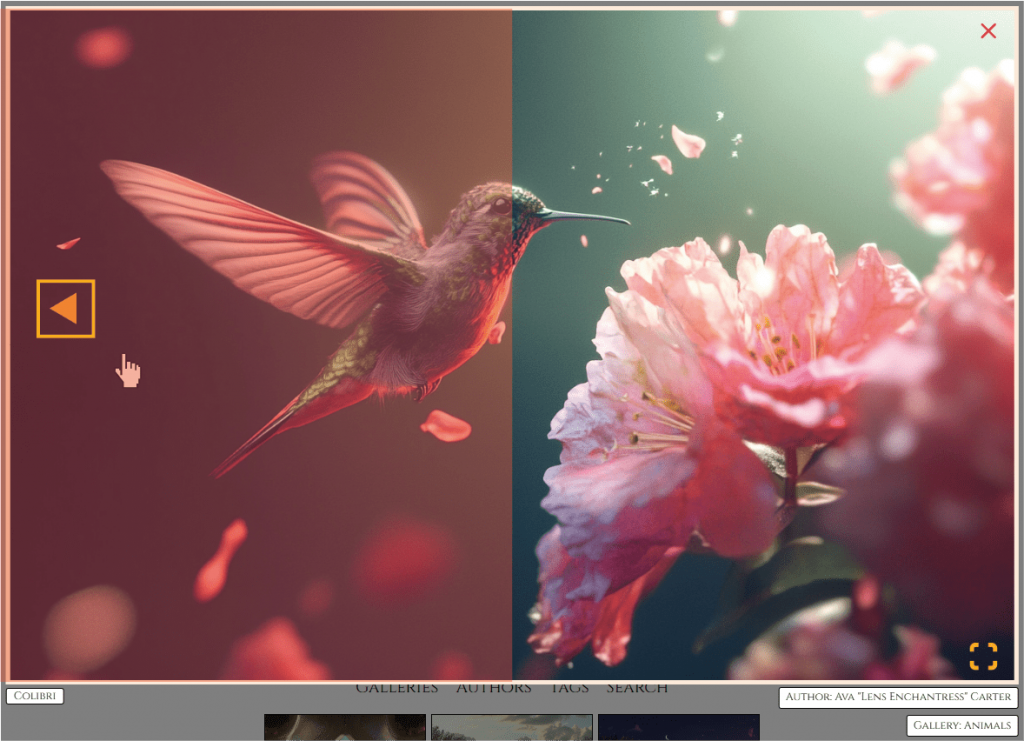
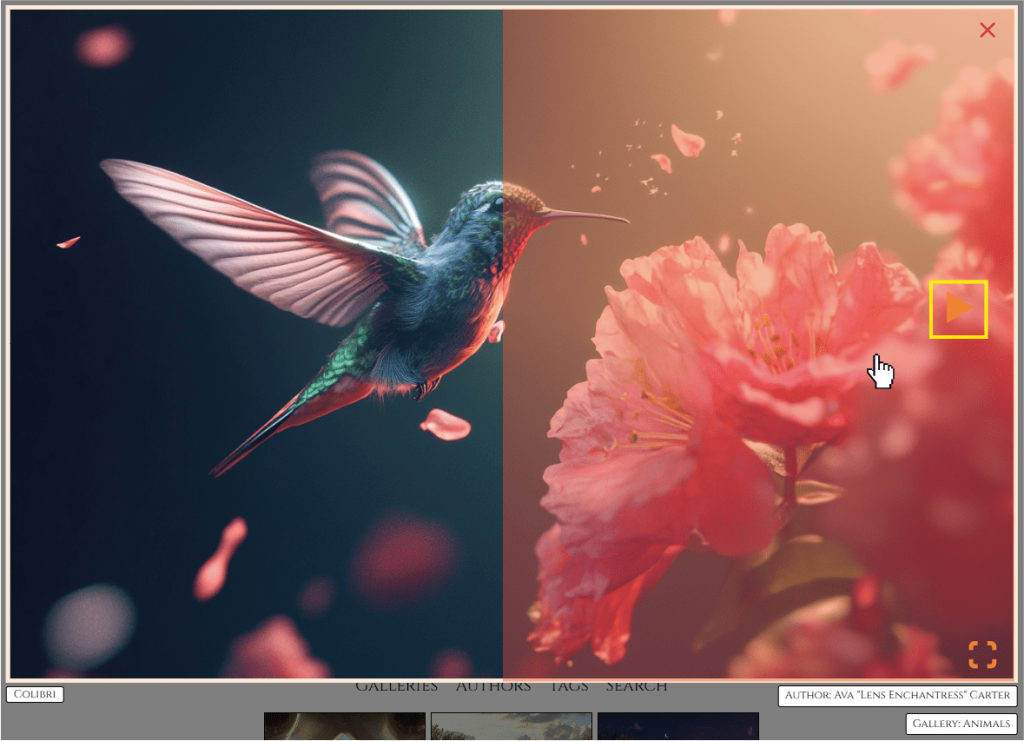
- Click an arrow to move through the gallery (left for the previous image, right for the next).
- You can also use the ← or → keyboard keys for navigation.
- Image Information & Tags
Below the image, you’ll find details such as tags, the author’s name, and the parent gallery. Images placed in the Main Gallery will not display a gallery field.
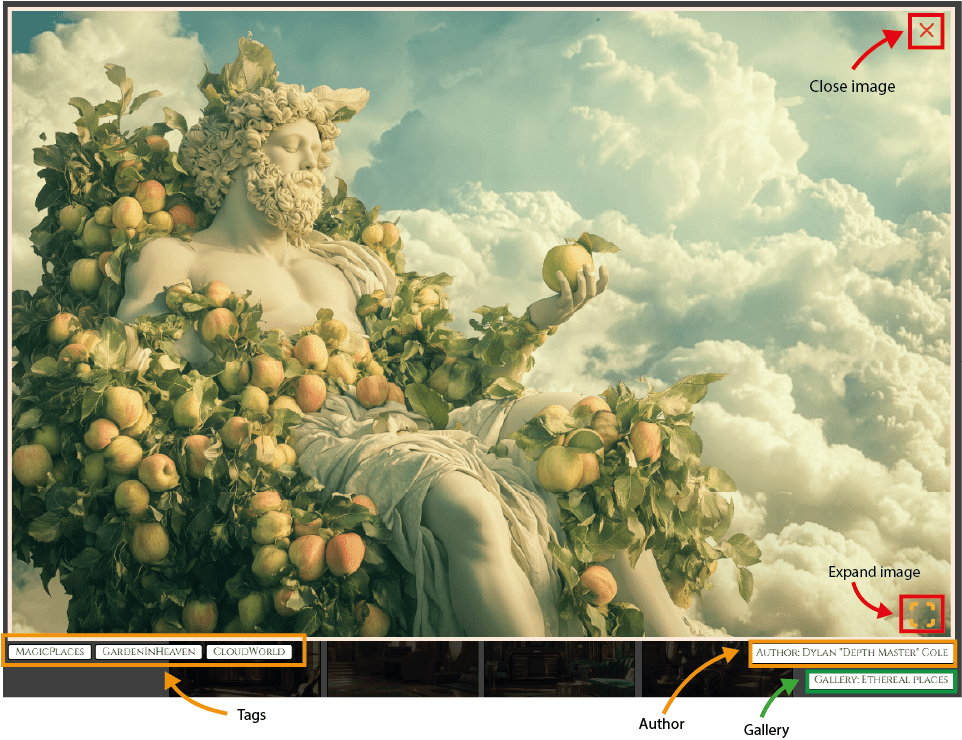
Each item is clickable:
- Clicking a tag shows all images with the same tag.
- Clicking the author’s name displays all images by that author.
- Clicking the gallery title takes you to the full gallery.
- Viewing in Full Resolution
To see the image in its original resolution, click the frame icon in the bottom-right corner. - Closing & Exiting
- To shrink an expanded image, click anywhere on the screen.
- To close the lightbox, click the red cross in the top-right corner or anywhere outside the image area.