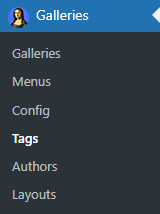
Accessible via the “Tags” section in the admin menu, this tool allows efficient tag creation, search, and merging operations.
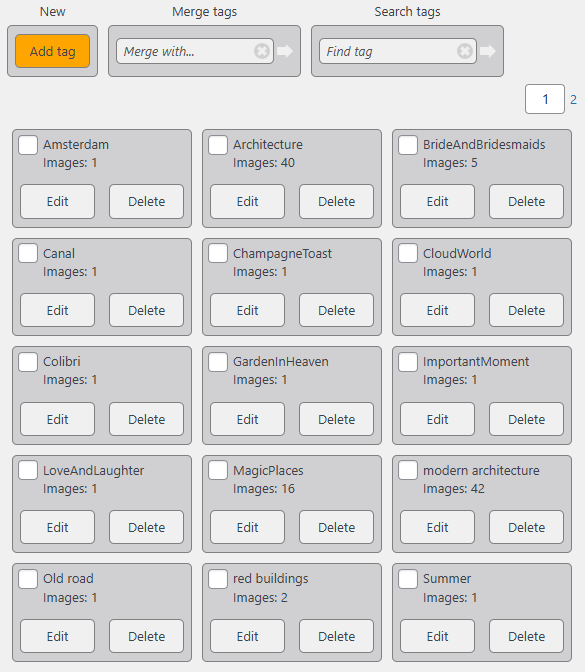
Tag Operations
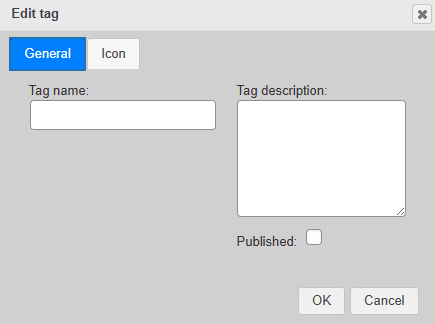
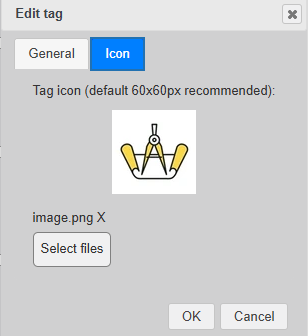
- Add Tag – Create a new tag by specifying its name, description, and icon:
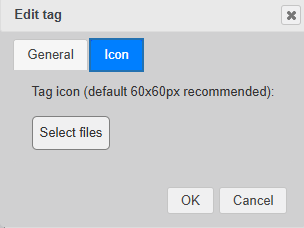
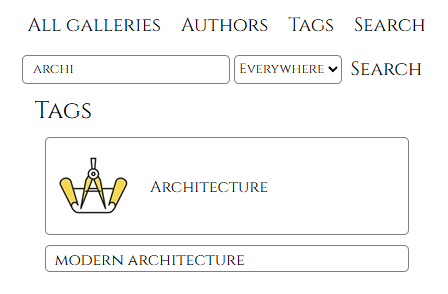
If a tag has an icon it will be displayed in tag Search results:
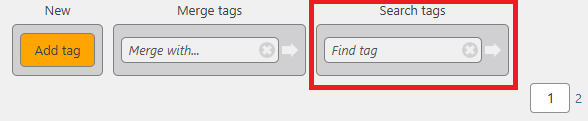
- Merge Tags – Select tag (A) checkbox (e.g., Architecture), and search for another tag (B) (e.g., Architecture Two) in the Merge tags section. Click on the arrow icon.

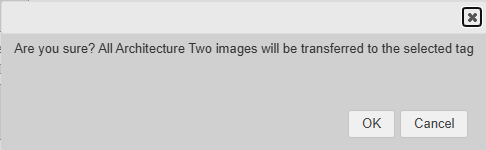
When you confirm the merge, all images tagged with (B) (Architecture Two) will be reassigned to (A) (Architecture), and (B) (Architecture Two) will be deleted from the system:
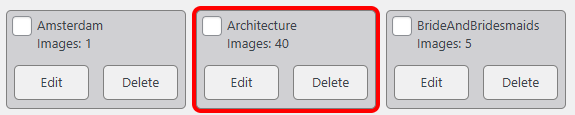
- Search Tags – Enter a tag name or ID and click the arrow icon to navigate directly to the tag’s page, where it will be highlighted with a red border for easy identification.

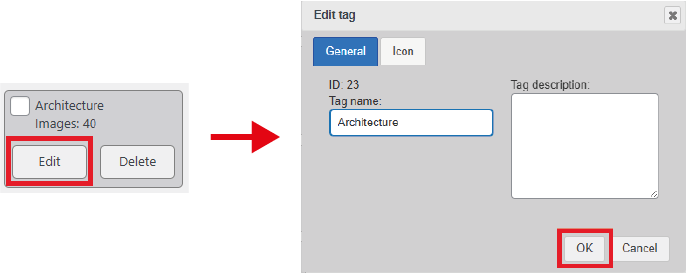
Edit tag – click on the Edit button of the tag icon. A dialog window will allow to edit details of the existing tags. Click OK to save changes.
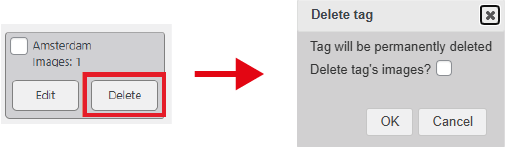
Delete tag – click on the Delete button of the tag icon. A dialog window will ask to choose if all images associated with this tag should be deleted. Once you click OK the tag will be removed from the system:
This functionality streamlines tag management and ensures an organized tagging system within the plugin.