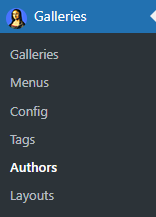
The Author Management section is available in the admin menu under ‘Authors’. Each author can be selected for merging or editing.
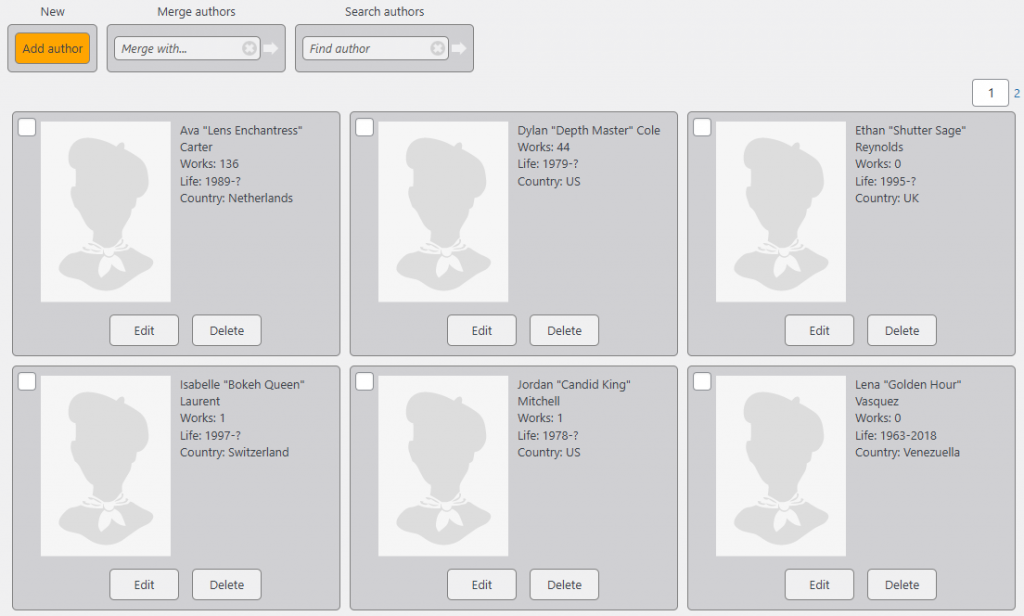
Features:
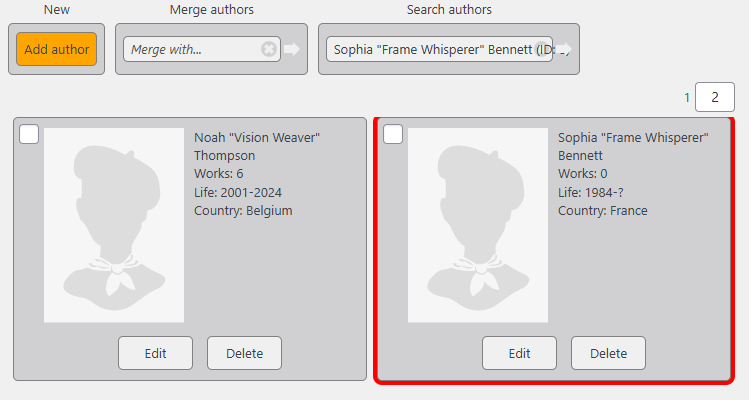
Search Authors – Enter an author name or ID and click the arrow icon. The system will navigate to the author’s page and highlight it with a red border.

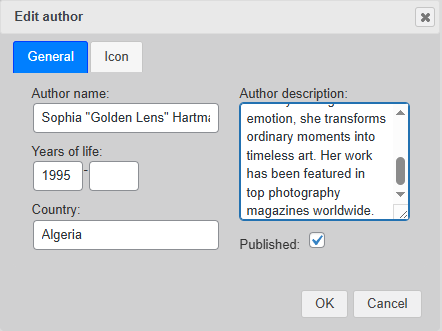
Add Author – Create a new author by entering a name, description, years of life, and selecting a portrait. You can also untick the Published attribute if you want to hide author’s content:
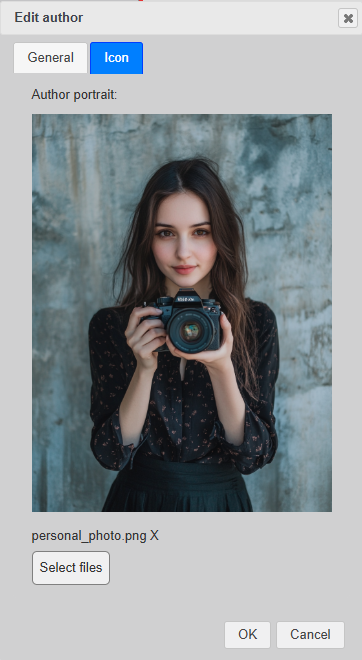
The portrait will be displayed in the Author management space and User search results:
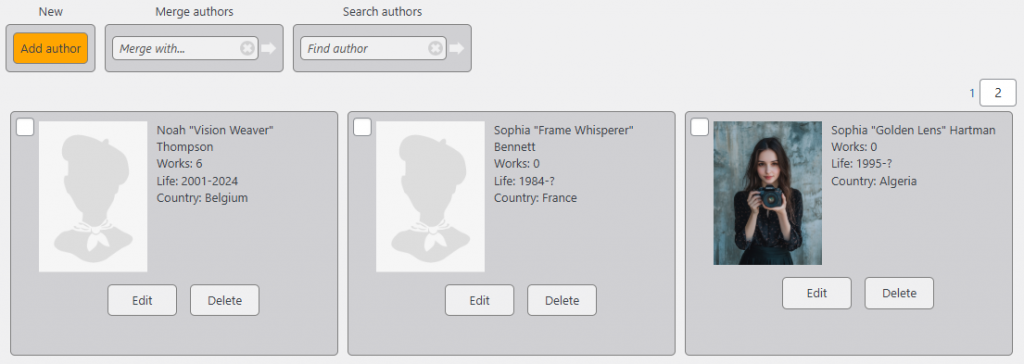
Merge Authors – Select an author (A) (Sophia “Golden Lens”), then search for another author (B) (Sophia Jr). Once selected, clicking the arrow icon will reassign all images from Sophia Jr to Sophia “Golden Lens”, and Sophia Jr will be removed from the system.


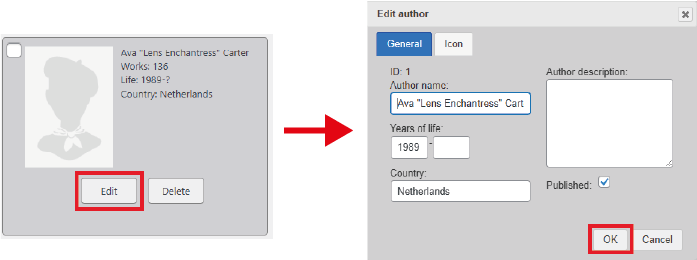
Edit authors – Click on Edit button on an icon to edit author’s properties. Change author details and click OK:
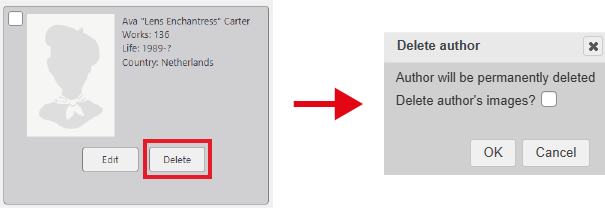
Delete authors – Click on Delete button and a deletion dialog will pop up. If you’d like to delete not only the author’s record, but all their images as well, tick Delete author’s images checkbox. Once you click OK the author will be removed from the system.