You can upload images either to the root folder of the plugin (also known as the Main Gallery, which does not have an ID) or to individual galleries. Upon upload, the plugin automatically generates a 300px icon for each image.
Images are uploaded via the Gallery section in the admin menu, with two main methods available:
1. Upload Button
Located just below the amber “Create Gallery” button:
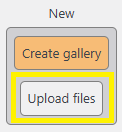
Clicking on it opens a dialog where you can:
- Select image files from a folder:
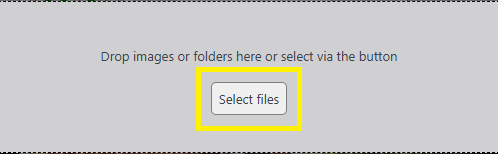
- Or just drag and drop files or an entire folder directly into the dropzone:
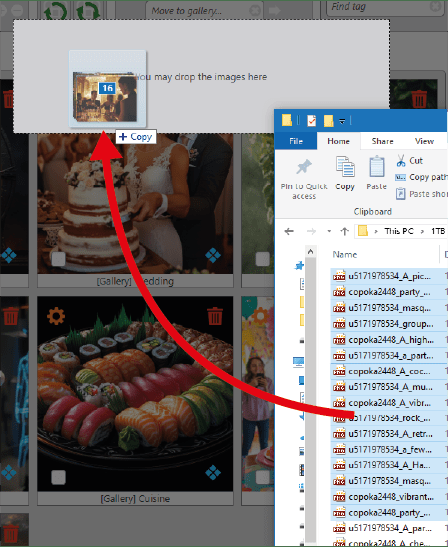
2. Drag-and-Drop to Gallery Space
You can also drag and drop images or folders directly into an empty gallery space. If the gallery has no images, a message will appear prompting you to drag and drop files into the drop zone.
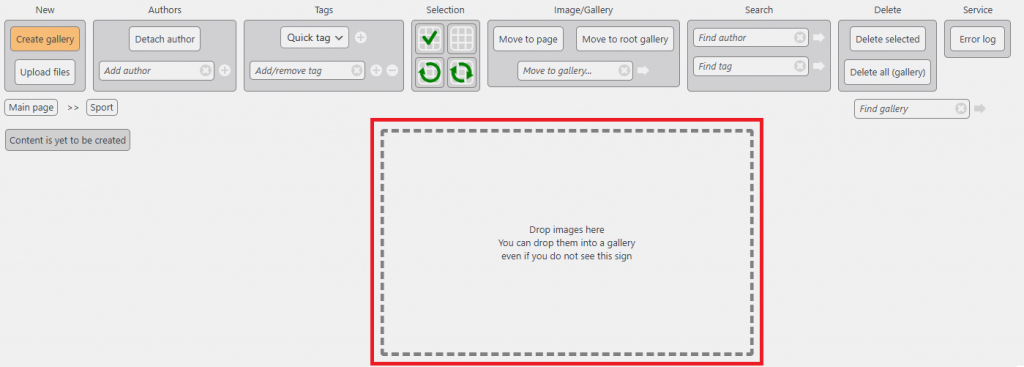
You can drag and drop images to the gallery even when it has images inside, this method works even if the gallery already contains images.
Upload Process & Error Handling
Once files are selected or dropped:
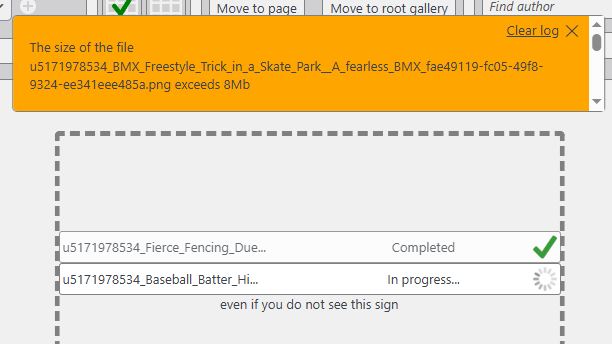
- Upload messages will appear on the screen.
- Successful uploads will be marked with a green checkmark and disappear after a few seconds.
- Failed uploads trigger an amber-colored error log. Additional failed uploads will be appended to this log.
You can close and reopen the Error Log at any time using the “Error Log” button in the top-right corner:

Common Upload Issues
Upload failures are typically due to file size limits. You can adjust these limits in the Config section (see details later in this manual).
Once the upload is complete, images will automatically appear in the gallery space.