Each gallery can be assigned a miniature icon, which represents the gallery within the Picture Director content flow.
Two Ways to Assign an Icon
1. Upload an Icon File
- Navigate to the Galleries section of the plugin.

- Find the desired gallery and open its settings by clicking the amber gear icon in the top-left corner of the gallery element.
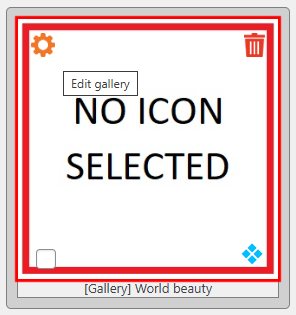
- Go to the Icon tab and click “Select files”.
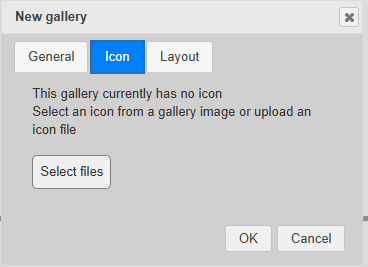
- Choose the desired file and confirm by clicking OK.
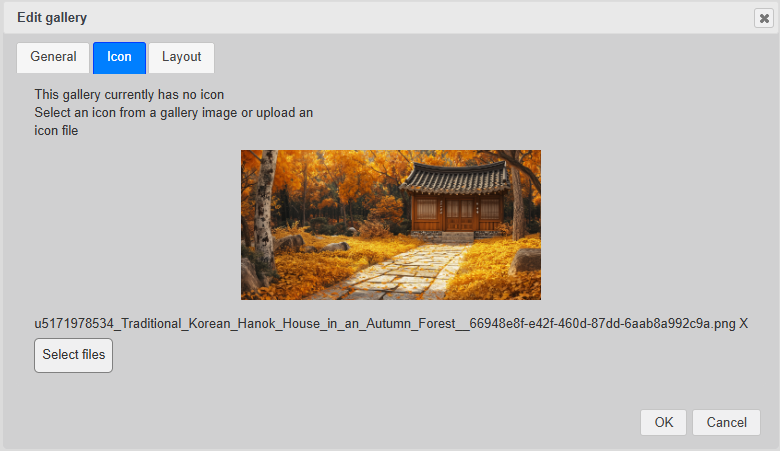
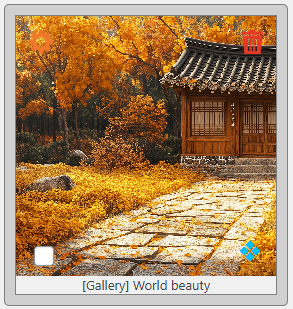
- The new icon will appear in the gallery element.
2. Select an Icon from Gallery Images
- First, upload images to the gallery.
- Click the four diamonds icon in the bottom-right corner of the gallery element.
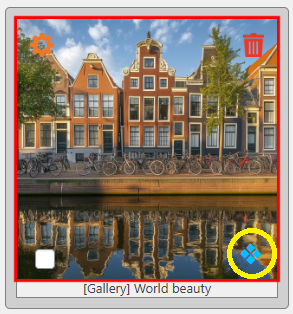
- The icon selection dialog will appear, allowing you to browse images using the navigation links at the top.

- Click on an image, and the gallery icon will update instantly.
