This section allows you to create new layouts or edit existing ones for your galleries. The layout management spaces shows all layouts created in the system:
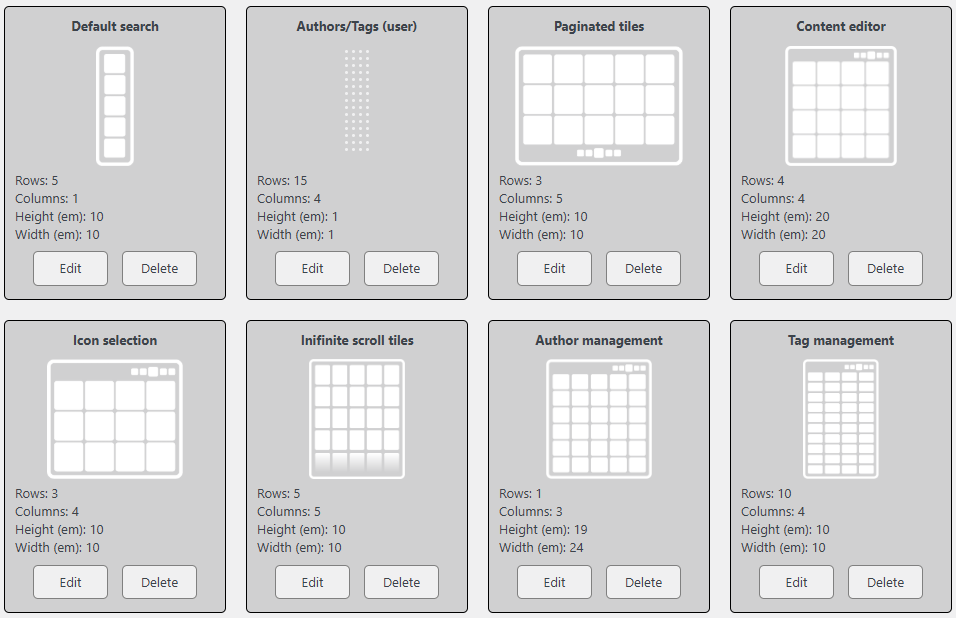
Each layout shows an icon of the gallery view. Large rectangles represent images, small chain of squares shows the Gallery page browsing controls location.
If a layout does not have an icon, Picture Director will generate a set of squares using information about number of columns and rows defined in the layout properties.
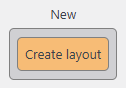
Clicking the “Create Layout” button opens a dialog window where you can configure layout parameters:
General Tab
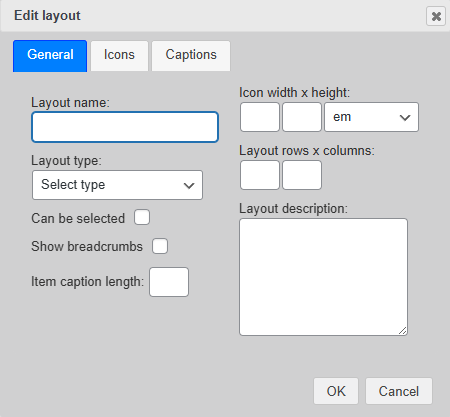
- Layout Name – The name displayed in the Layouts section.
- Layout Type – A dropdown to select a template for the new layout (see layout types in the Galleries feature description above).
- Can Be Selected – If checked, the layout will be available for selection in gallery properties.
- Item Caption Length – The number of characters displayed for gallery and image names under icons (default: 40).
- Icon Width × Height – The display size of the layout icon (not the actual file size).
- Layout Rows × Columns – Defines the number of images/galleries per row and column.
- Layout Description – A brief description of the layout.
Icons Tab
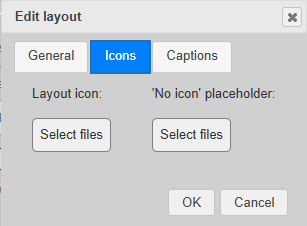
- Layout Icon – The icon displayed in the layout selection tab of gallery properties, as well as in the ‘Layout management’ view. Click on ‘Select files’ to upload an icon of your choice.
- “No Icon” Placeholder – The icon shown for galleries without a selected icon, also requires your file to be uploaded.
Captions Tab
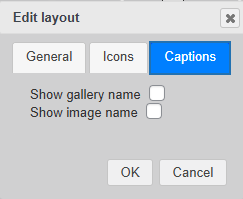
- Show Gallery Name – Determines whether the gallery name appears on the icon.
- Show Image Name – Determines whether image names appear on the icon.
Once a layout is created, it appears in the Layout Management section. If no icon is selected, the plugin will attempt to dynamically represent the row and column structure. However, we recommend setting custom icons for a better admin experience.