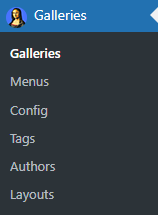
Gallery Management in the Admin Section
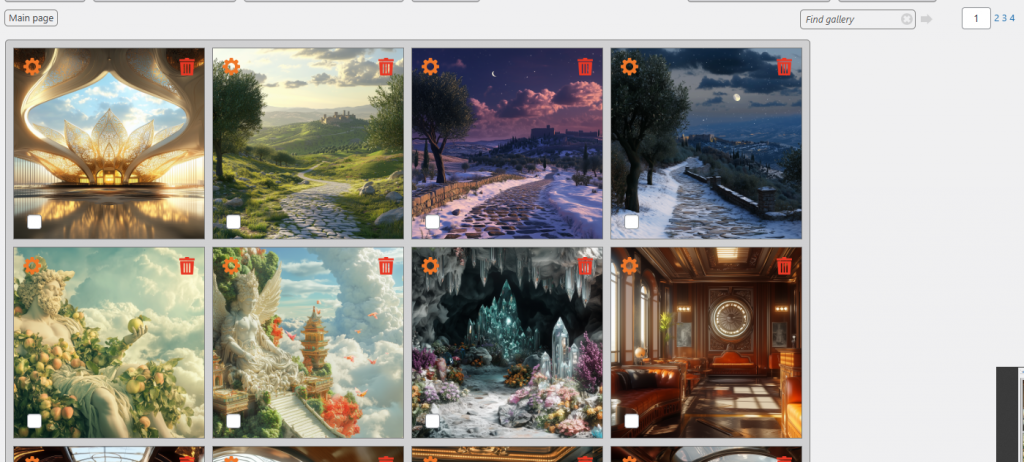
The Gallery section in the admin menu allows you to manage galleries and albums. Click on a gallery icon to view its contents. Clicking on an image will open a larger version, but it will not display in full resolution— this feature is available only for users browsing the galleries.
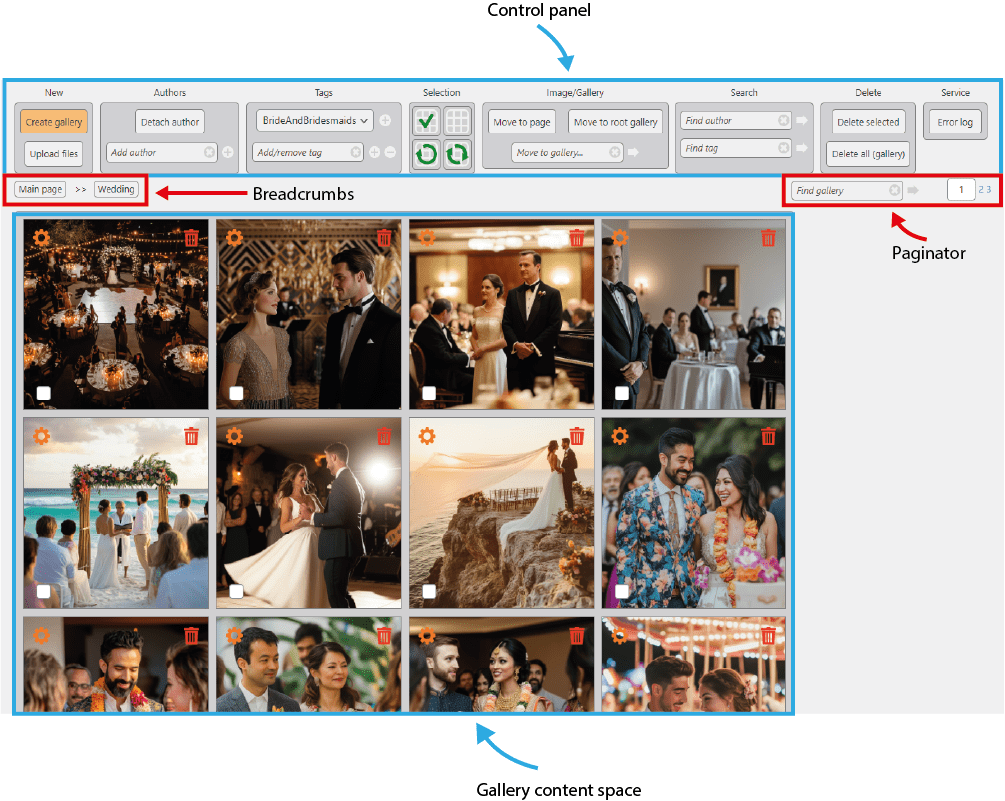
The Gallery management space consists of 4 main areas:
- Control panel on the top – it holds all useful tools to edit galleries in bulk
- Breadcrumbs panel – allows to jump back to the galleries you browsed
- Paginator – enables admin to navigate over the gallery, the standard admin layout holds 16 images, so if your gallery contains more images then you’ll see the paginator
- Gallery content space – the area with children galleries and images
1. Bulk Gallery & Image Operations
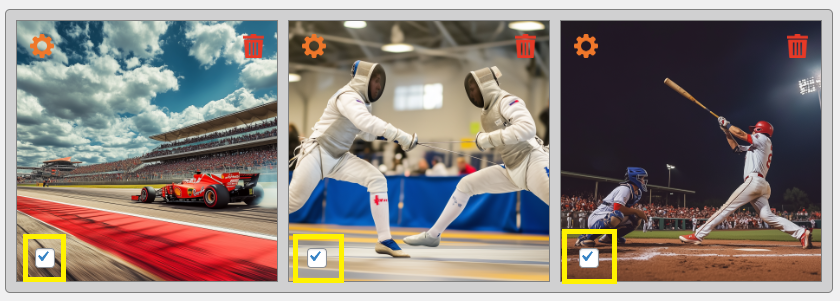
Bulk actions can be applied to multiple galleries and images selected via checkboxes.
Available operations include:
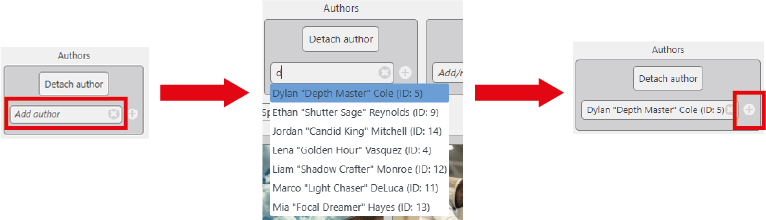
- Add author – Assign the selected author to all chosen images and images within nested galleries. Click in the ‘Add author’ form, start typing part of the author name (or ID), select the desired author from the dropdown list and click on the + button.
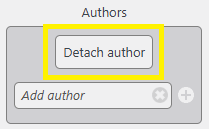
- Detach author – Remove the author’s name from selected images and gallery images.
- Move to page – Relocate selected galleries and images to a specific page in the gallery space. For example, if a new gallery is added to page 2 or 3 due to the gallery count, you can move it to page 1 for better organization.
In this example a pretty manor is placed to the page 5 of the ‘Architecture’ gallery:
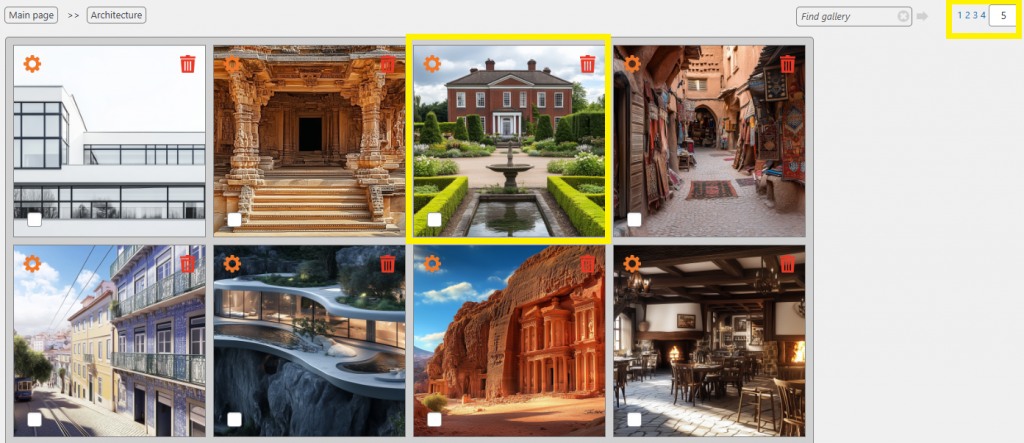
Next we tick the checkbox in on the manor icon and click ‘Move to page’ on the control panel:
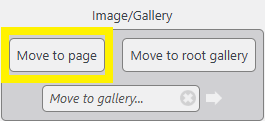
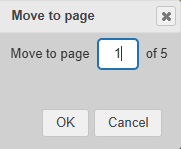
A pop-up dialog appears, we input the number of the page we want to move the image to:
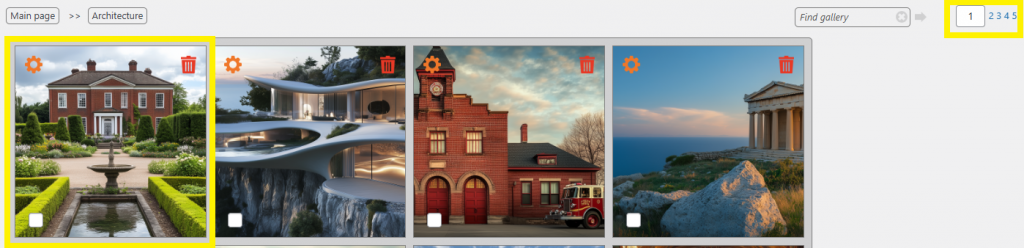
Once we click OK, the system will move us to the page 1 where we see our manor in the very beginning of the gallery:
- Move to root gallery – Move selected galleries and images to the Main Gallery (which has no ID). Once you click on the button the selected images will be moved.
- Move to gallery – Enter part of the gallery name or its full ID, select from the dropdown list, and click the arrow button to move the selected galleries and images.

- Delete selected – Permanently delete all selected images, galleries, and their contents.
- Delete all – Remove all content from the currently displayed gallery.
2. Selection Menu
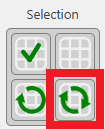
Quick selection buttons to streamline image tagging:
- Select all – Selects all galleries and images on the page.
- Unselect all – Deselects everything.
- Repeat selection – Restores the last selection of galleries and images.
- Invert selection – Reverses the current selection (selected items become unselected, and vice versa).
3. Tag Management
Allows adding or removing tags for images (tags do not apply to galleries).
- Add/Remove tag – Enter part of a tag name and select from the dropdown list or create a new tag.
- Click “+” to assign the tag to selected images.
- Click “–” to remove the tag.
To create a new tag just select images, type your new tag into the field on the control panel and press + sign (or press Enter):

To add an existing tag start typing, select your tag from the dropdown list and press + sign (or press Enter):

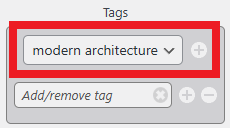
- Quick tag – Provides access to the last 10 assigned tags for quick selection. Every time you use an existing tag, it is being added to the quick tag dropdown. Select images, choose an item from the quick tag dropdown list and press the + sign:
4. Drag-and-Drop Ordering
Rearrange images and galleries within the current gallery using drag-and-drop functionality.
- Go to the Galleries section of the menu
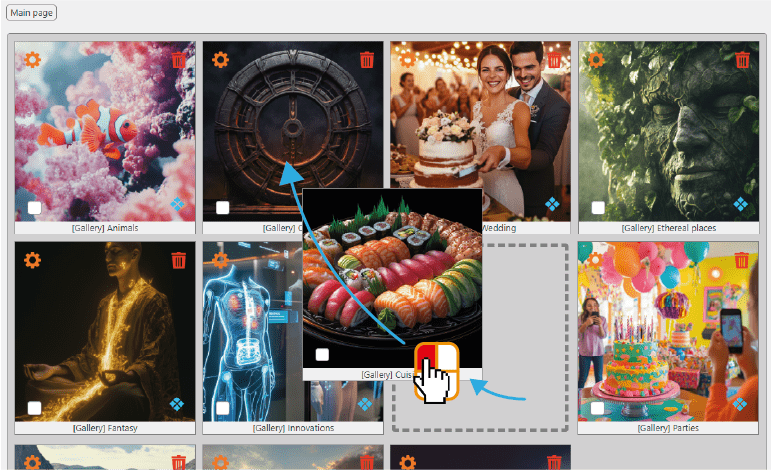
- Click on a gallery you would like to move, hold the left mouse button and pull it to the desired position, you will see that other items will move to give room to the moving gallery:
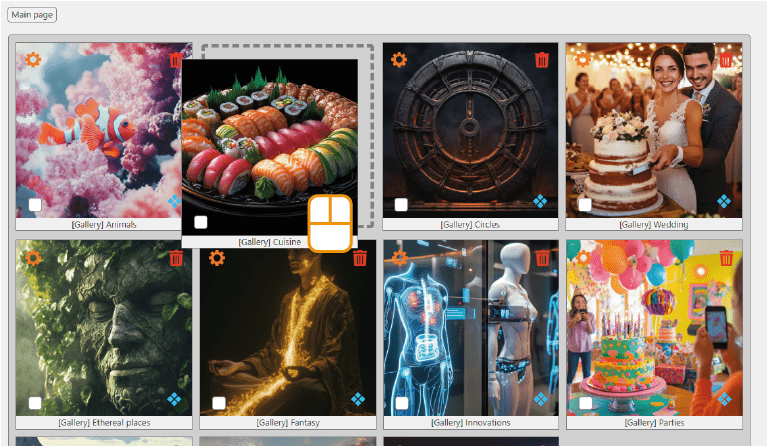
- Release the mouse button so the gallery takes a new place:
5. Page Overlapping
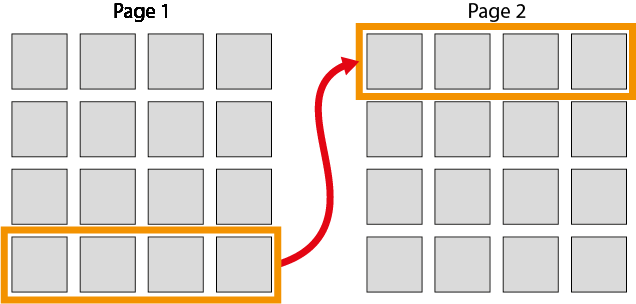
The top row of each page includes elements from the previous page. For example, when navigating from page 1 to page 2, the last row of page 1 will be displayed at the top of page 2. This helps when moving elements between pages. See also the ‘Gallery browsing‘ section.
6. Find Gallery
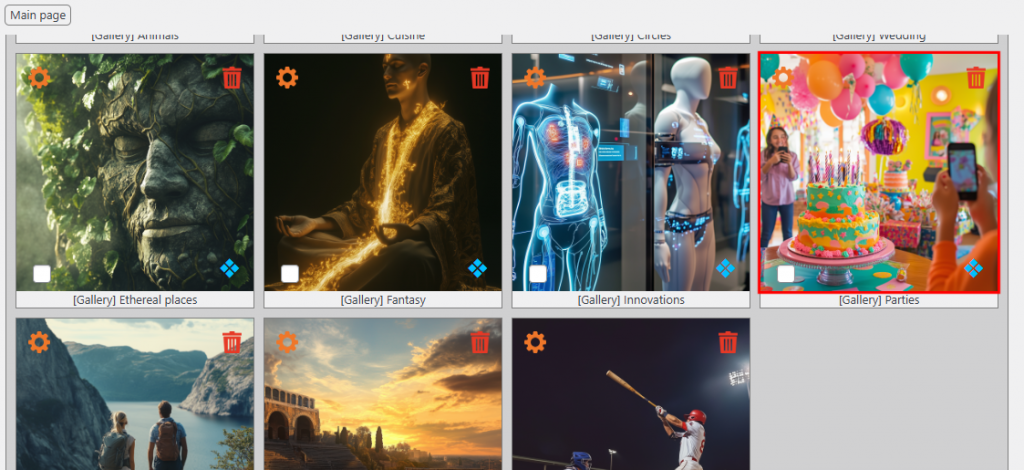
Enter a gallery name or ID, select from the dropdown list, and click the arrow icon to locate it. The gallery icon will be highlighted with a red border.
7. Search
Find gallery – Transfer you to the gallery you have searched for:
- Locate ‘Find gallery’ input form on the right side of the control panel
- Type a part of the gallery name in the form (please note that the system will be searching only the gallery you are currently in)
- Select your gallery from the dropdown menu
- Press the arrow button

The system will move the screen to the page with the gallery highlighting it with a red border:
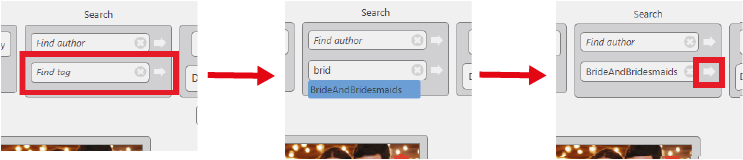
Find tag – Shows all images with a tag of interest:
- Locate ‘Find tag’ input form on the right side of the control panel
- Start typing a part of the tag name
- Select the tag from the dropdown menu
- Click on the arrow icon
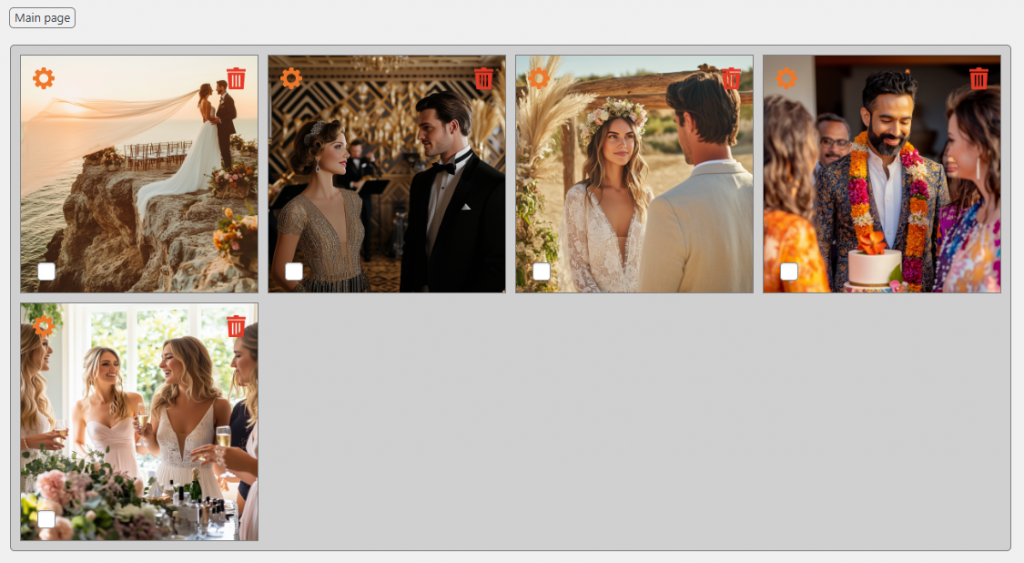
The system will show all images with your tag in the gallery space:
Find author – Shows all images of the author:
- Locate ‘Find author’ input form on the right side of the control panel
- Start typing a part of the author’s name or author ID
- Select author’s name from the dropdown menu
- Click on the arrow icon
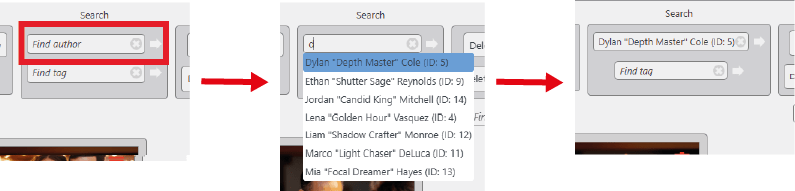
The system will show all images of the author in the gallery space: