Organizing Your Images in Galleries
You can organize your images into galleries, and galleries can also contain other nested galleries.
Creating a Gallery
To create a new gallery, navigate to Galleries → Create Gallery (click the amber button in the top-left corner of the menu).
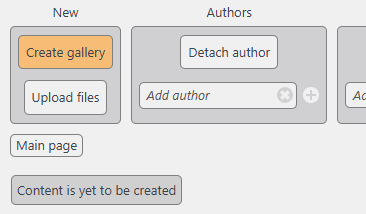
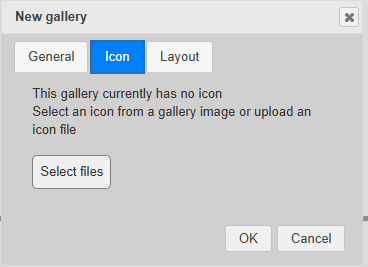
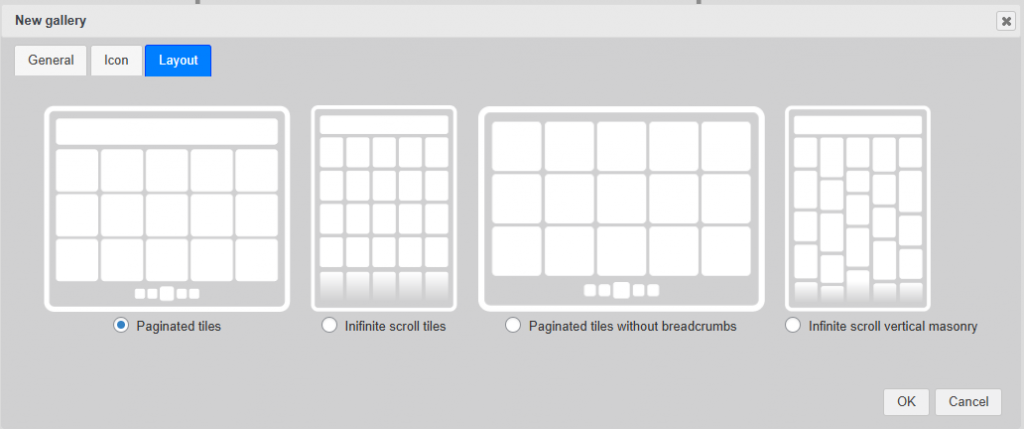
The gallery creation dialog consists of three tabs:
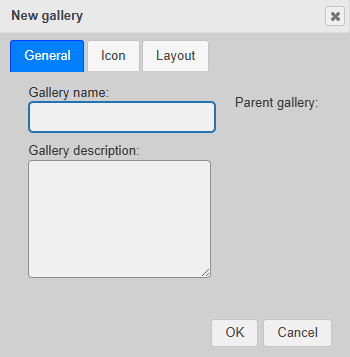
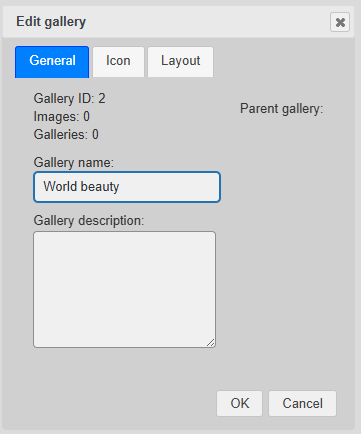
- General – Enter a gallery name (required) and an optional description. The gallery name will be displayed in lists and views.
- Icon – Optionally upload an icon file to represent the gallery. Alternatively, you can select an icon later from the gallery’s uploaded images.
- Layout – Choose how the gallery’s content will be displayed.
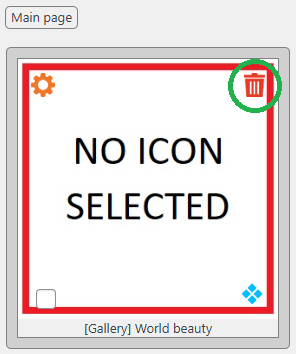
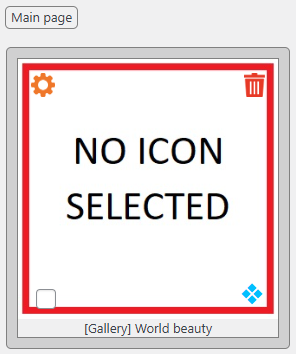
Once the gallery is created, it will appear on the screen with a placeholder image indicating that no icon has been selected. This placeholder will be replaced in future with the first uploaded image.
Managing Gallery Properties
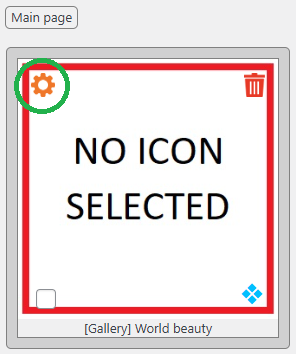
You can edit gallery properties by clicking the gear icon in the top-left corner of the gallery thumbnail.
The settings dialog provides all the options available during gallery creation.
Gallery Icon Controls
The gallery icon features three additional controls:
Checkbox: Use this for bulk operations (refer to the Gallery Management Space feature for details).
Blue rombs (bottom-right corner): Select an icon from images already uploaded to the gallery. If you want to use an image that is not part of the gallery, use the gear icon in the top-left corner.
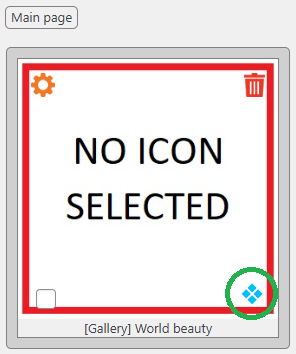
Red bin (delete button): Permanently delete the gallery, including all its images and any nested galleries with their images.